Connecting data#
DuckDB (built in)#
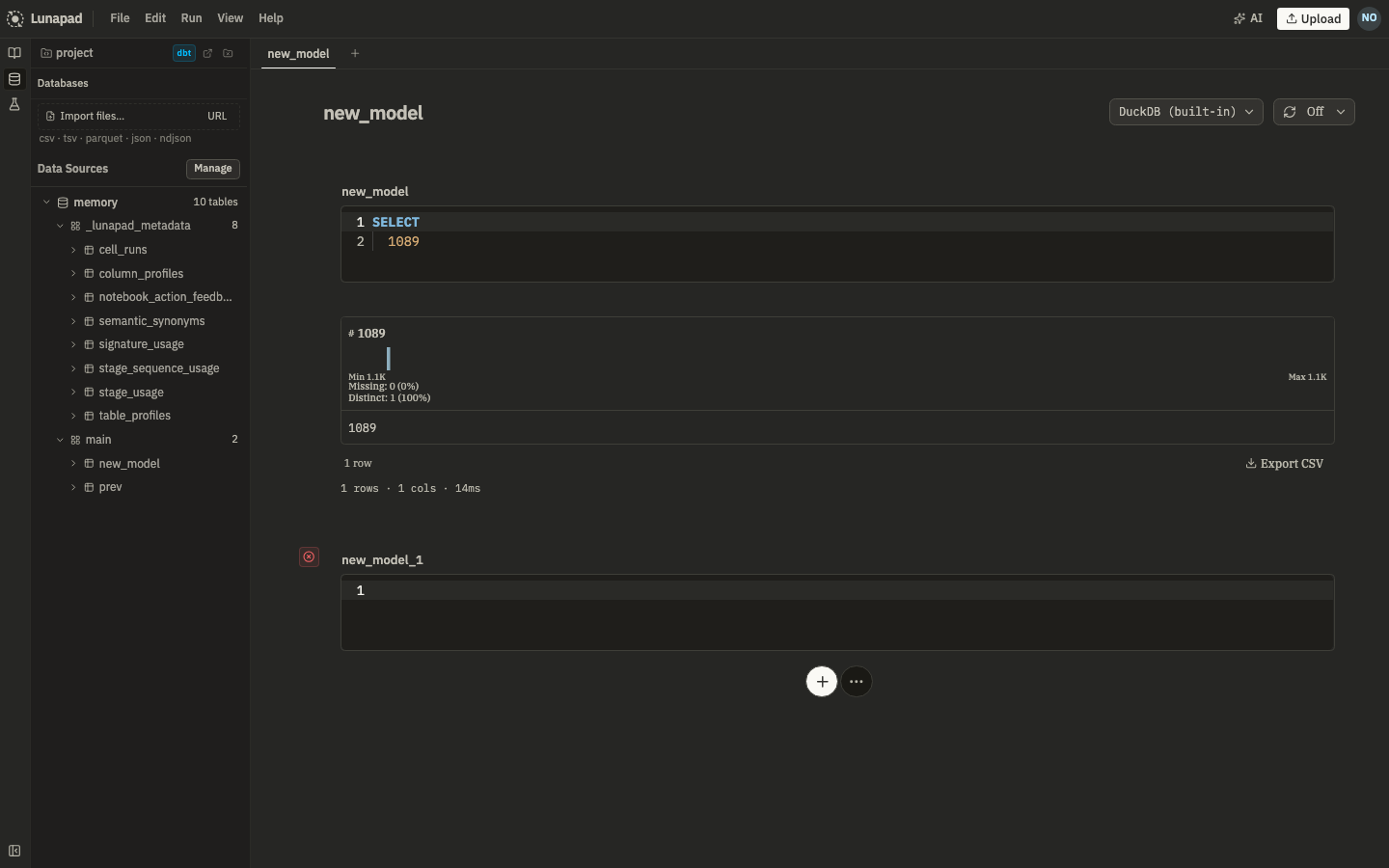
Every new cell defaults to a built-in DuckDB engine running entirely client-side. You don't set up a service or connection string. Use it for quick analysis, uploaded files, or your first hour in the app.
External sources#
Open Data Sources in the sidebar and click Add source. Supported types include Postgres, ClickHouse, MySQL, Snowflake, and others exposed in the connection form. Lunapad routes external queries through Trino, so connection types behave consistently and can be joined in one query.
A few things specific to adding a source:
- Source ID is set once, at creation, and can't be changed afterward. It must start with a letter and contain only lowercase letters, digits, and underscores. If you need a different ID, remove the source and re-add it.
- After saving, expect a roughly 15-second wait while Lunapad registers the new source with Trino and waits for it to come back up.
- Connection passwords are stored encrypted, server-side. Your browser never holds or sends plaintext credentials, even when you're the one who typed them in.
- External queries are checked before they run. Lunapad allows
SELECT,WITH,VALUES, andEXPLAINonly. Semicolons,INSERT,UPDATE,CREATE, and similar keywords are rejected. One statement per request.
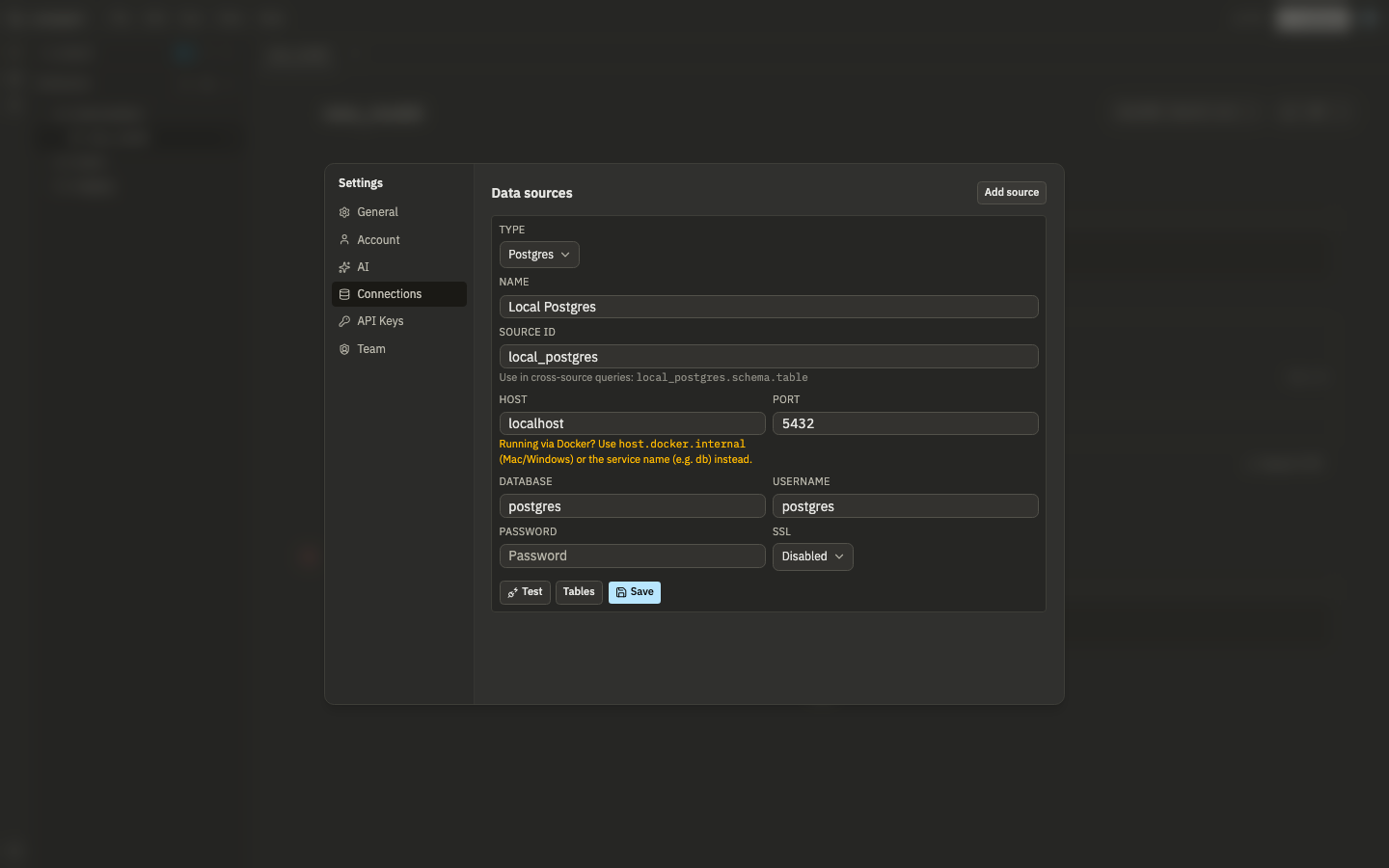
Once added, reference a source's tables with a three-part name:
from my_postgres.public.users
filter active == true
select {id, email}
Snowflake uses an account identifier (e.g. xy12345.us-east-1) instead of host/port.
Cross-source joins#
Because every external source is a Trino catalog under the hood, you can join across them in a single query without moving data first:
SELECT u.email, o.total
FROM my_postgres.public.users u
JOIN my_clickhouse.analytics.orders o ON o.user_id = u.id
Sample data#
A tpch catalog ships built in (see Getting started). With the bundled Docker Compose stack, docker_postgres points at the same tpch.tiny.* tables on the bundled Postgres instance. Join across the two catalogs to see how cross-source queries work on a laptop.
Uploading files#
Drag a CSV (or similar) file into the upload dialog and it becomes a queryable table in DuckDB. You don't configure a source. Join the upload against a warehouse table when you have a one-off spreadsheet to reconcile.
Browsing schemas#
The schema browser in the sidebar lists tables and columns across every connected source, DuckDB and external alike. Click a column name to insert it into the focused cell. Expand a table to preview rows or open the profile view (column stats from DuckDB's SUMMARIZE).
Next#
Results, charts, and dashboards covers what you do with a query once it runs.