Self-hosting#
Docker Compose (recommended)#
The bundled docker-compose.yml runs four services:
- app: Lunapad itself
- db: Postgres, the source of truth for accounts, the shared workspace, comments, sites, and connection metadata/secrets in full (non-demo) mode
- trino: fronts every external data source (Postgres/ClickHouse/MySQL/Snowflake connections become Trino catalogs)
- inngest: runs scheduled dbt model builds
Start order matters and is health-checked automatically: Postgres, then Trino, then the app, then Inngest. First start takes about a minute because Trino needs that long to come up.
docker compose up --build   # first run
docker compose up -d        # subsequent starts
docker compose logs -f      # tail everything
docker compose ps           # confirm everything is "healthy"
docker compose down         # stop, keep data
docker compose down -v      # stop and wipe everything (fresh start)
Environment variables#
Set these on the app service. The committed docker-compose.yml ships working defaults for local trial use; replace the secrets before deploying anywhere real.
| Variable | Default in the compose file | What it's for |
|---|---|---|
DATABASE_URL |
postgresql://lunapad:lunapad@db:5432/lunapad |
Connection string for the shared Postgres instance |
BETTER_AUTH_SECRET |
change-me-to-a-random-32-byte-secret |
Signs session tokens. Replace this before any real deployment. |
SECRETS_ENCRYPTION_KEY |
change-me-to-a-random-32-byte-base64-key |
Encrypts stored connection passwords at rest. Replace this too, and never reuse the value from BETTER_AUTH_SECRET. |
TRINO_URL |
http://trino:8080 |
Where the app reaches Trino |
TRINO_CATALOG_DIR |
/trino-catalog |
Where catalog .properties files are written when you add a data source |
PROJECT_FOLDER |
/app/project |
A dbt project folder to auto-open on startup. If it's empty, a starter project is scaffolded into it. Opening a different folder from the UI overrides this on later reloads. |
OLLAMA_BASE_URL |
http://host.docker.internal:11434 |
Reaches an Ollama install running on the host machine, only relevant if you're using Ollama for the AI assistant |
INNGEST_BASE_URL / INNGEST_EVENT_KEY / INNGEST_SIGNING_KEY |
http://inngest:8288 / local / local |
Scheduler connection. Omit INNGEST_BASE_URL entirely to disable scheduling |
DEMO_MODE |
unset | Set to 1 for a public, read-only demo deployment (see below) |
What's stored where#
| Location | Holds |
|---|---|
Postgres workspace_state |
Shared notebooks, cells, tabs, workspace standards (one JSONB row) |
Postgres user_settings |
Per-user AI provider config (API keys, model name) |
Postgres comment_* tables |
Review threads, messages, reactions |
Postgres sites / site_pages |
Multi-page report sites and nav |
Postgres shared_reports |
Published share tokens and metadata |
| Postgres auth tables | Accounts, sessions, roles |
| Your browser's local storage | A cache of the workspace for fast load; not the source of truth in full mode |
| Your project folder (if one is open) | Your actual dbt project: model files, .luna notebook files, schema.yml, dbt_project.yml |
./trino/catalog/ |
One .properties file per external data source you've registered |
Back up the Postgres volume and your project folder. Everything else is reconstructible or derived.
Workspace sync#
The browser debounces saves and POSTs the workspace blob to /api/workspace/save with an expectedUpdatedAt timestamp. If someone else saved in between, the server returns 409 Conflict and the UI offers Reload or Keep mine. See Comments and review.
Roles#
| Role | Notebooks | Connections | dbt run | Publish shares | Admin |
|---|---|---|---|---|---|
| admin | read/write | manage | yes | yes | yes |
| editor | read/write | query | yes | yes | no |
| viewer | read only | query | read | no | no |
All roles can write comments. Legacy user in the database is treated as editor.
Adding teammates#
Only admins can add accounts; there's no open signup after the first account.
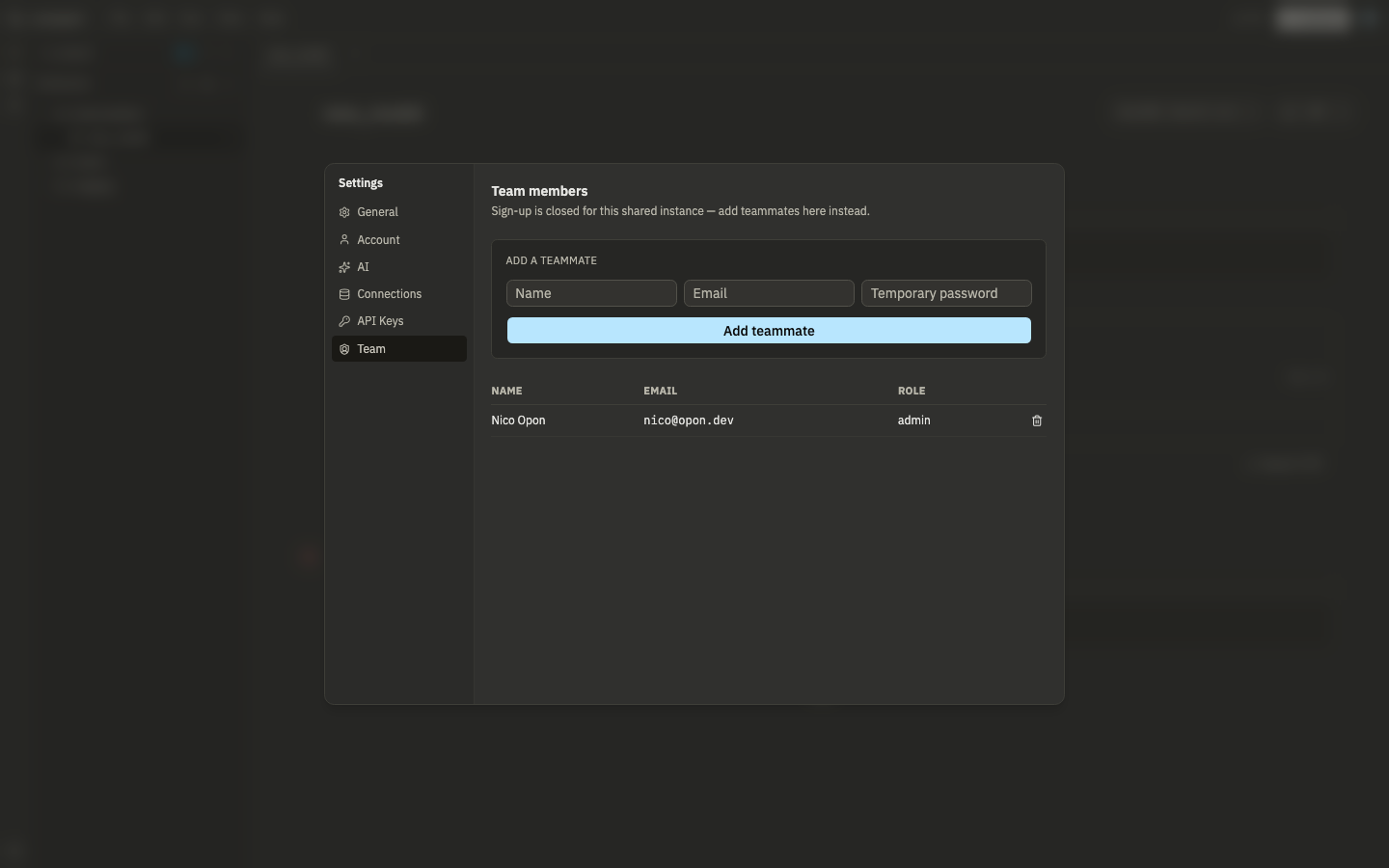
Settings → Team (UI today): name, email, temporary password. The new user can log in immediately. Role defaults to whatever better-auth assigns (typically editor); there's no role dropdown in the form yet.
Invitations API (alternative): admins can POST /api/invitations with { "email": "...", "role": "editor" | "viewer" }. The response includes a token; send the invitee /invite/{token}. They set a password and get the invited role. List pending invites with GET /api/invitations. Revoke with DELETE /api/invitations?id=.... No email is sent automatically; you deliver the link yourself.
Upgrading#
docker compose pull
docker compose up -d
Data persists across this as long as you don't run down -v, since that wipes the Postgres volume along with everything in it.
Demo mode#
Setting DEMO_MODE=1 turns off authentication and blocks routes that would let a visitor reach external connections, dbt, the workspace-persistence API, or the automation API. Run it for a public read-only demo on sample data, not for a deployment with real credentials.
Visitors land directly in the Sales Analytics Demo notebook with all cells pre-run. Data stays in DuckDB WASM in the browser — nothing is persisted server-side.
One-command public demo#
docker compose -f docker-compose.yml -f docker-compose.demo.yml up -dCopy .env.demo.example to .env and set ORIGIN to the URL users reach the app at (e.g. https://demo.example.com).
| Setting | Demo value | Effect |
|---|---|---|
DEMO_MODE |
1 |
No login; blocks connections, dbt, workspace API, automation API |
PROJECT_FOLDER |
empty | Skips auto-opening a dbt project folder |
In a normal (non-demo) install, first-time visitors see a welcome dialog; they can also load the demo anytime from File → Explore demo notebook.
Other ways to run it#
- Desktop app. A native Tauri build, if you'd rather not run Docker at all.
- Outside Docker. Possible, but you're then responsible for running Postgres, Trino, and (optionally) Inngest yourself and pointing the same environment variables at them. See the repository's main
README.mdfor the local development setup.