Sharing and reports#
Publishing a share link#
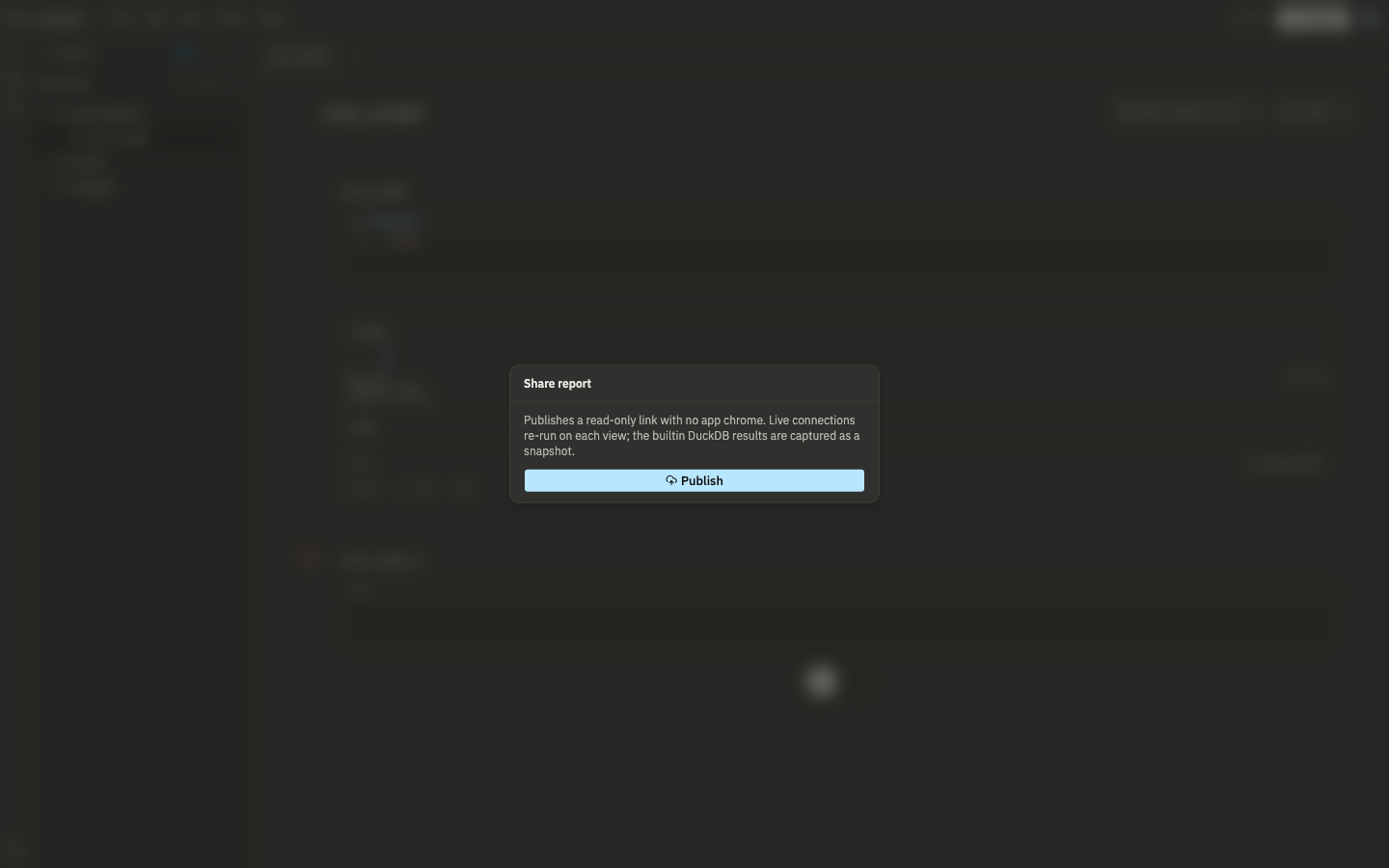
Open a notebook or report and click Share. Publishing gives you a public, read-only URL with no Lunapad chrome, just the rendered content. Anyone with the link can view it; they don't need a Lunapad account unless you turn on auth (see Sites below).
What "live" means depends on the connection:
- Cells on an external connection (Postgres, ClickHouse, MySQL, etc.) re-run their query every time someone loads the page.
- Cells on the built-in DuckDB engine are captured as a snapshot at publish time, because there's no server-side DuckDB to query on demand.
Set how often the page polls for fresh results (seconds). Use Save settings to update poll interval, auth, or expiry without republishing the snapshot. Re-publish with Update snapshot when you want to refresh DuckDB-backed cells.
Pre-publish checklist warns about unbound filters, duplicate data cells, empty results, and DuckDB + filter limitations.
DuckDB and filters: Live warehouse cells re-run with viewer filter choices. DuckDB cells are frozen at publish time — simple dropdown filters can narrow frozen rows client-side, but SQL ${param} filters on DuckDB upstream cells do not refresh after publish. Use an external connection for fully interactive filtered dashboards, or schedule automatic snapshot refresh.
Regenerate link issues a new token and invalidates the old one. Revoke takes the page down entirely. Do either if a link leaked further than you meant.
Live re-runs are rate-limited server-side so a popular shared link can't hammer your warehouse.
Who can publish#
Only admin and editor roles can publish or update shares. Viewers can open notebooks and comment but get an error if they try to publish. See Comments and review.
Multi-page sites#
A single share link is one page. Sites bundle multiple published reports under one URL with navigation.
Create a site#
Open View → Sites… in the app (or /sites directly). Click New site, enter a slug and display name, and save.
Slug rules: lowercase letters, digits, and hyphens only; 3–64 characters. Examples: quarterly, exec-dashboard. Invalid slugs are rejected at save time.
Add pages#
Select a site in the list. Under Pages, pick a published share from the dropdown (you must publish notebooks individually first via Share). Give the page its own slug and nav label. Reorder pages with the up/down arrows.
Public URL:
https://your-host/s/{siteSlug}/{pageSlug}Example: site quarterly, page revenue → https://your-host/s/quarterly/revenue.
Auth and lifecycle#
Toggle Require auth on a site if viewers must log into your Lunapad deployment. Anonymous visitors are redirected to login.
Deleting a site removes navigation only. The underlying share links keep working at their original /r/... URLs until you revoke them.
Updating a page's share token (regenerate link on the notebook) does not break site navigation when the page was added with notebook binding — sites resolve the latest share for that notebook automatically.
Share review on published reports#
Authenticated teammates can open Review on a published report (/r/...) to leave share_report comment threads. Threads appear in the Inbox under share review.
Evidence.dev#
For code-based reports beyond markdown widgets, Lunapad can detect and run an Evidence project in your open dbt folder, querying the same connections. If your project isn't set up as Evidence, the option doesn't appear. When it does, open it from the project menu; Evidence runs alongside Lunapad, not inside a share link.