Getting started#
Run it#
docker compose up --build   # first run, builds the app image (a few minutes)
docker compose up -d        # subsequent starts
This starts four services:
| Service | What it's for | URL |
|---|---|---|
| Lunapad | the app | http://localhost:3967 |
| Trino | query engine for external data sources | http://localhost:8067 |
| Postgres | shared workspace, accounts, connection secrets | localhost:5432 |
| Inngest | scheduler for cron model runs | http://localhost:8267 |
Trino takes about a minute to finish starting. The app waits for Trino to report healthy before it serves requests, so the first docker compose up sits for a bit before anything loads in the browser. Run docker compose ps and wait until every service says healthy. Until then you may see a connection error or a blank page; that's normal on first boot.
First login#
Open http://localhost:3967. You'll land on a setup screen asking you to create an account. The first account you create becomes the admin, and signup closes immediately after, so nobody else can self-register. The admin adds teammates later from Settings → Team (covered in self-hosting).
After that, every visit goes through a normal login.
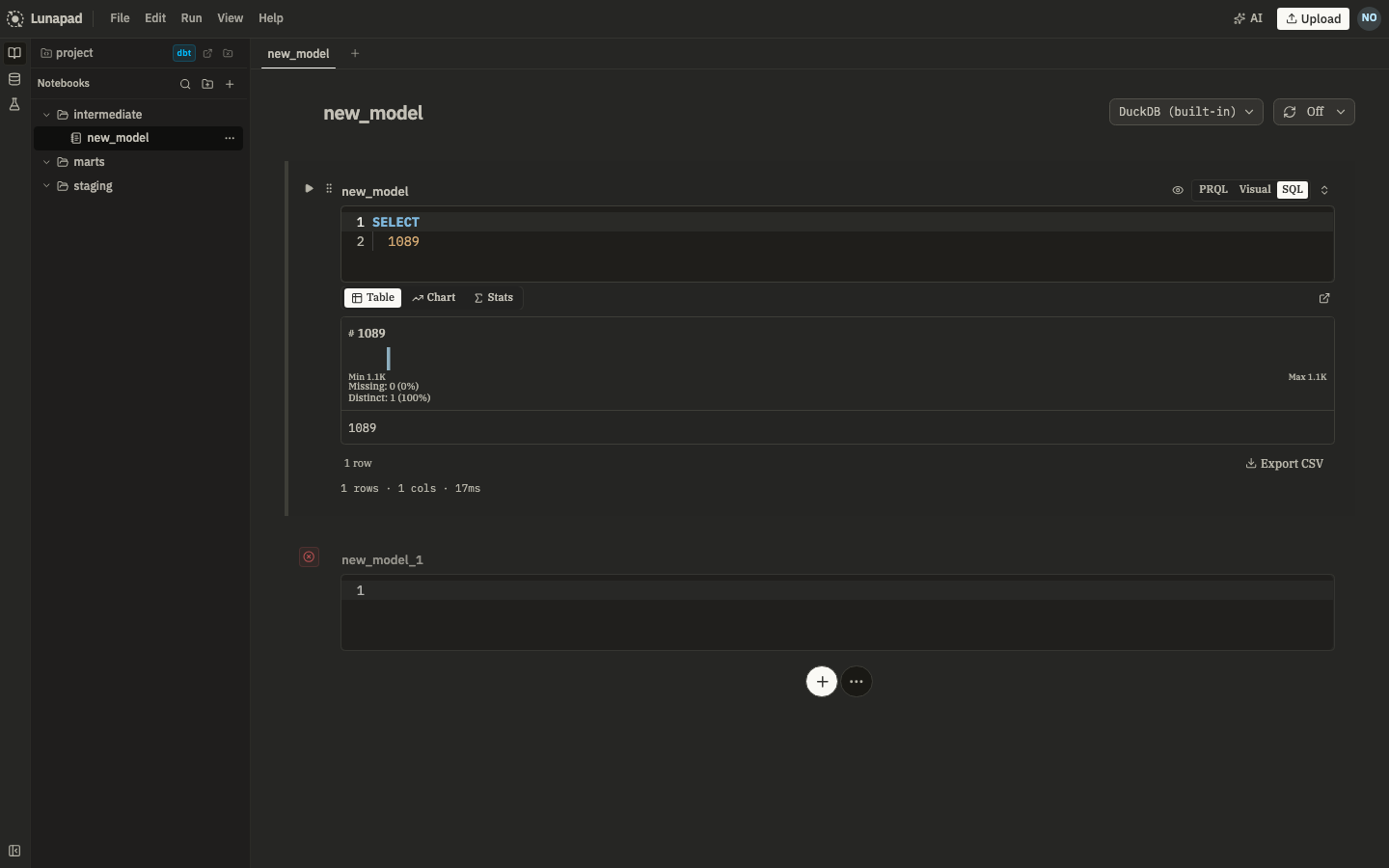
Once you're in, the notebook header has toggles for the Review panel (team comments) and the AI assistant (⌘J). You don't need either to run your first query, but they're there when you want them.
Try a query without setting anything up#
Lunapad ships with a sample dataset wired up out of the box. Open a notebook, add a cell, and run:
SELECT * FROM tpch.tiny.nation
SELECT * FROM tpch.tiny.orders LIMIT 100
tpch is a built-in Trino catalog; you don't configure it. A second catalog, docker_postgres, points at the bundled Postgres instance with the same tpch.tiny.* tables. Try joining across them if you want to see cross-source queries without standing up another database (see Connecting data).
You can also write to the built-in DuckDB engine with no catalog prefix at all. That's the default connection for any new cell.
Other ways to run it#
Desktop app. Lunapad also ships as a native desktop app (Tauri-based) if you'd rather not run Docker. Functionality is the same; external data sources still need Trino running somewhere reachable.
Local development. If you're modifying Lunapad itself rather than just using it, see the repository's main README.md for pnpm dev instructions.
Next#
Notebooks and cells covers how to actually work in the app once you're logged in.